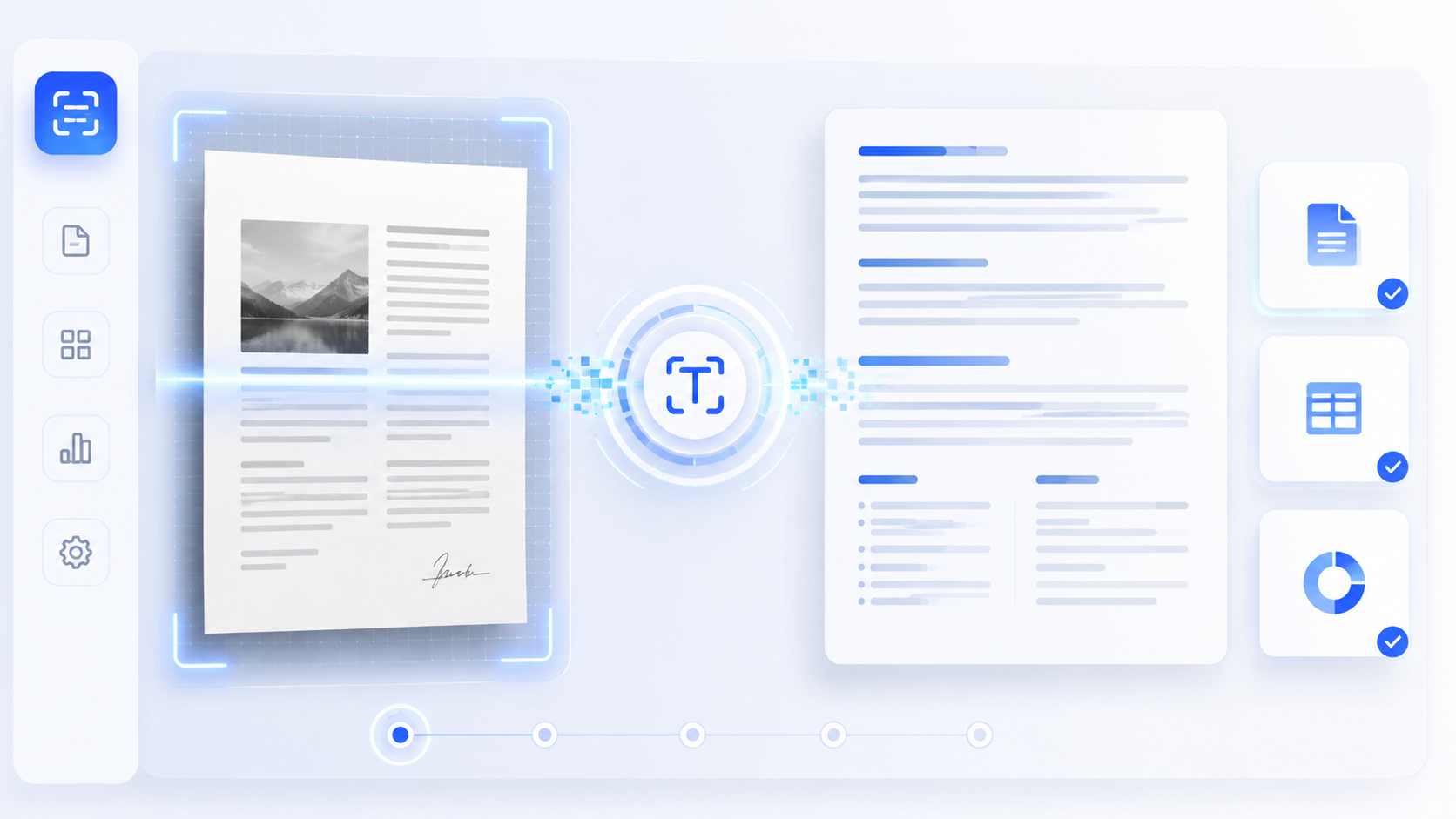
Have you ever needed to extract text from an image but didn't want to type it out manually? Maybe you have a scanned document, a screenshot of important information, or a photo of handwritten notes that you need in digital format. Converting images to text used to be a tedious process requiring expensive software or manual transcription, but not anymore.
Today, Optical Character Recognition (OCR) technology makes it possible to convert image to text online in seconds. Whether you're a student digitizing lecture notes, a professional processing documents, or anyone who needs to extract text from images, online OCR tools have made this process incredibly simple and accessible.
In this comprehensive guide, we'll explore everything you need to know about converting images to text. We'll cover what OCR is, how it works, the best methods for text extraction, and how to use our free online OCR tool to get accurate results every time.
What is OCR?
OCR stands for Optical Character Recognition. It's a technology that converts different types of documents—such as scanned paper documents, PDF files, or images captured by digital cameras—into editable and searchable data. OCR analyzes the visual patterns in an image to identify characters, words, and text structures, then reconstructs them into digital text that you can edit, copy, and search.
The concept of OCR has been around since the early 20th century, but modern OCR technology has advanced dramatically. Early OCR systems were limited to specific fonts and required perfectly formatted documents. Today's OCR uses advanced machine learning and neural networks to recognize text in multiple languages, various fonts, handwritten styles, and even complex layouts with tables and columns.
OCR technology has become essential in our digital world. It powers features like text selection in PDFs, automatic translation of signs through smartphone cameras, digitization of book archives, and accessibility features that help visually impaired users interact with visual content. The technology has matured to the point where it's now accurate enough for most practical applications and accessible enough for everyday use.
How Image to Text Works
Converting an image to text involves several sophisticated steps that happen in a fraction of a second. Understanding this process can help you get better results from OCR tools by knowing what factors affect accuracy.
The process begins with image preprocessing. The OCR software first enhances the image to improve text recognition. This includes adjusting contrast to make text stand out more clearly, removing noise or artifacts that might be mistaken for characters, straightening skewed or rotated images, and converting color images to grayscale or black and white for clearer character definition. Good preprocessing is crucial—poor quality images often lead to poor OCR results.
Next comes layout analysis, where the software identifies different regions of the image. It distinguishes between text areas, images, tables, and other elements. This step is important for maintaining the structure of complex documents. The software identifies text blocks, paragraphs, lines, and individual words, understanding how they relate to each other in the document's layout.
Character recognition is the core OCR step. The software analyzes each character individually, comparing it against a database of known character patterns. Modern OCR uses neural networks trained on millions of character examples to recognize text in various fonts, sizes, and styles. The system doesn't just match shapes—it understands context, so it can distinguish between similar characters like 'O' and '0' or '1' and 'l' based on surrounding words.
After recognizing individual characters, the software reconstructs words and sentences. This involves understanding character spacing, word boundaries, and sentence structure. Advanced OCR systems use language models to improve accuracy—they can predict likely word combinations and correct obvious errors based on context.
Finally, post-processing cleans up the results. This includes spell checking, formatting preservation, and confidence scoring. The software assigns a confidence score to each recognized character or word, indicating how certain it is about the accuracy. Low-confidence areas might be flagged for manual review, especially in professional document processing workflows.
Best Ways to Convert Image to Text
There are several methods for converting images to text, each with its own advantages and use cases. Understanding these options helps you choose the right approach for your specific needs.
Online OCR tools are the most convenient option for most users. These web-based tools require no software installation—you simply upload your image to a website and get text back in seconds. They're perfect for quick conversions, occasional use, or when you're working on different devices. The best online OCR tools are free, support multiple image formats, and process everything in your browser for privacy. Our free image to text converter is a great example—no signup required, no file size limits, and complete privacy as processing happens in your browser.
Desktop OCR software offers more advanced features for professional use. Programs like Adobe Acrobat Pro, ABBYY FineReader, and Readiris provide batch processing, advanced layout preservation, and integration with document management systems. These tools are ideal for businesses that regularly process large volumes of documents or need to maintain complex formatting. However, they're typically expensive and require installation and learning time.
Mobile OCR apps bring text extraction to your smartphone. Apps like Google Lens, Microsoft Office Lens, and CamScanner use your phone's camera to capture images and extract text instantly. They're incredibly convenient for on-the-go use—capturing text from signs, documents, whiteboards, or books wherever you are. Many of these apps also include features like document scanning, PDF creation, and cloud storage integration.
API-based OCR services are designed for developers and businesses building OCR into their applications. Services like Google Cloud Vision API, Amazon Textract, and Microsoft Azure Computer Vision provide programmatic access to powerful OCR capabilities. These are ideal for automating document processing workflows, building custom applications, or integrating OCR into existing business systems. They're typically priced based on usage and require technical expertise to implement.
For most everyday users, online OCR tools offer the best balance of convenience, cost, and features. They're free, easy to use, work on any device with a web browser, and don't require any technical knowledge. Unless you have specific professional needs that require advanced features, an online OCR tool is likely all you need.
Why Use Online OCR Tools
Online OCR tools have become increasingly popular, and for good reason. They offer several advantages over traditional desktop software and other methods of text extraction.
Convenience is the biggest advantage. Online tools work directly in your web browser—no downloads, no installations, no updates to manage. You can access them from any device with internet access, whether you're on your computer at work, your tablet at home, or your phone while traveling. This universal accessibility makes online OCR perfect for people who work across multiple devices or need to process documents on the go.
Cost is another major factor. Most online OCR tools are completely free, with no limitations on file size or number of conversions. Desktop OCR software can cost hundreds of dollars, while online tools provide the same core functionality at no cost. This makes OCR accessible to students, freelancers, small businesses, and anyone who needs text extraction but doesn't have the budget for expensive software.
Privacy has become a significant concern with online tools, but modern online OCR has addressed this. The best tools, including ours, process everything entirely in your browser using JavaScript. Your images never leave your device—they're analyzed locally and the extracted text appears on your screen. This means your documents remain completely private, making online OCR suitable for sensitive business documents, personal information, or confidential materials.
Speed is another advantage. Online OCR tools are optimized for quick processing. Most images convert to text in under 30 seconds, with simpler images taking just a few seconds. There's no waiting for software to load or complex configurations to set up. Upload, click, and get results—it's that simple.
Online tools also benefit from continuous improvement. Because they're web-based, developers can update the underlying OCR technology without requiring users to download anything. This means you always have access to the latest OCR improvements and accuracy enhancements without any effort on your part.
How to Use Toolmatic OCR Tool
Our free image to text converter is designed to be intuitive and easy to use, even if you've never used OCR before. Here's a step-by-step guide to getting the best results.
Start by preparing your image. For the best OCR results, use clear, high-resolution images with good contrast between text and background. Ensure the text is sharp and well-lit. If you're taking a photo of a document, hold your camera steady and avoid glare or shadows. Straight, properly oriented images produce much better results than skewed or rotated ones.
Upload your image to our tool. You can either drag and drop the image directly onto the upload area or click to browse your device's files. Our tool supports JPG, PNG, and WEBP formats, which cover the vast majority of image types you'll encounter. There are no file size limits, so you can upload high-resolution images for better accuracy.
Preview your image to ensure it's the correct file and that the text is clearly visible. The preview feature lets you verify you've selected the right image before processing, saving time if you accidentally upload the wrong file.
Click the "Extract Text" button to start the OCR process. Our tool will display a progress indicator showing the extraction status. Processing typically takes 5-30 seconds depending on image size and complexity. The progress indicator keeps you informed so you know the tool is working.
Review the extracted text in the output area. Our tool displays the recognized text in an editable textarea, so you can make corrections if needed. OCR is highly accurate but not perfect—you might occasionally need to fix a character or two, especially with unusual fonts or poor image quality.
Use the output options to work with your extracted text. You can copy the text to your clipboard with one click, download it as a TXT file for offline use, or clear the output to start over with a new image. The tool also displays word count and character count statistics, which can be helpful for understanding the scope of your content.
For best results, experiment with different image qualities if you're not getting accurate text extraction. Sometimes converting a color image to black and white before uploading, or adjusting contrast in an image editor, can significantly improve OCR accuracy. Our tool works with whatever you upload, so you can try different approaches to find what works best for your specific images.
Benefits of OCR
OCR technology offers numerous benefits across various fields and applications. Understanding these benefits helps you appreciate why OCR has become such an essential tool in our digital world.
For businesses, OCR dramatically improves efficiency. Manual data entry is time-consuming, expensive, and prone to errors. OCR automates this process, converting paper documents into digital data in seconds. This saves countless hours of labor, reduces transcription errors, and allows employees to focus on higher-value tasks. Businesses can process invoices, forms, contracts, and other documents automatically, streamlining workflows and reducing operational costs.
Document digitization is another major benefit. Converting paper documents to digital text makes them searchable, editable, and easier to organize. Instead of searching through physical filing cabinets, you can instantly search digital documents for specific keywords. This transforms how organizations manage information, making archives accessible and useful rather than just stored.
Accessibility is significantly improved through OCR. Visually impaired users can use screen readers to access text that was previously locked in images. This makes websites, documents, and other content more inclusive and compliant with accessibility standards. OCR also enables text-to-speech conversion, allowing users to listen to documents instead of reading them.
For students and researchers, OCR makes studying and research more efficient. Instead of manually transcribing quotes from books or retyping lecture notes, students can simply photograph the text and extract it digitally. This saves time, reduces errors, and makes it easier to organize and search through study materials. Researchers can digitize archival documents, making historical resources more accessible and analyzable.
Content creators and marketers benefit from OCR's ability to extract text from visual content. Social media managers can transcribe text from posts and advertisements for analysis. Designers can extract text from client materials. Journalists can capture quotes from images. This flexibility makes OCR invaluable for anyone who works with both visual and text content.
OCR also enables automation and integration. Digitized text can be automatically processed, analyzed, and integrated with other systems. This powers applications like automated invoice processing, form data extraction, and document classification. As businesses increasingly adopt digital transformation, OCR serves as a bridge between physical and digital workflows.
Frequently Asked Questions
How accurate is OCR technology?
Modern OCR technology is highly accurate for printed text, typically achieving 90-95% accuracy with clear, high-quality images. Accuracy depends on several factors including image quality, text clarity, font type, and lighting conditions. Printed text in standard fonts produces the best results. Handwritten text accuracy varies significantly based on handwriting clarity and style—neat, printed-style handwriting can achieve good results, while cursive or highly stylized writing may be less accurate. Using high-resolution images with good contrast and proper lighting significantly improves accuracy.
Can OCR recognize handwritten text?
Yes, modern OCR can recognize handwritten text, but accuracy varies widely based on handwriting quality. Neat, legible handwriting with consistent letter formation produces the best results. Cursive writing, highly stylized handwriting, or messy writing is more challenging and may have lower accuracy. For best results with handwritten text, ensure good lighting, high contrast, and as clear handwriting as possible. Some specialized OCR tools are specifically trained for handwriting and may produce better results than general-purpose OCR.
What image formats work best for OCR?
JPG, PNG, and WEBP are the most common and well-supported formats for OCR. These formats offer good quality and are widely used by digital cameras, smartphones, and scanners. High-resolution images (300 DPI or higher) produce better results than low-resolution images. Black and white or grayscale images often work better than color images because they provide clearer contrast between text and background. TIFF is another format that works well for OCR, especially for scanned documents, though it's less common in everyday use.
Is online OCR safe for sensitive documents?
It depends on the specific tool. Some online OCR tools upload your images to their servers for processing, which raises privacy concerns. However, the best online OCR tools, including ours, process everything entirely in your browser using JavaScript. Your images never leave your device, ensuring complete privacy and security. When choosing an online OCR tool for sensitive documents, look for ones that specify browser-based processing or that have clear privacy policies about data handling.
How can I improve OCR accuracy?
Several factors affect OCR accuracy, and you can improve results by optimizing your images. Use high-resolution images (at least 300 DPI for scanned documents). Ensure good lighting and contrast between text and background. Straighten skewed or rotated images before processing. Convert color images to black and white or grayscale to improve contrast. Avoid blurry images—use steady hands or a tripod when photographing documents. For scanned documents, ensure the scanner bed is clean and the document is properly aligned. Preprocessing images in an editor to adjust brightness, contrast, and sharpness can also significantly improve OCR results.
Can OCR preserve document formatting?
Basic OCR tools typically extract text without preserving complex formatting like tables, columns, or fonts. However, advanced OCR software and some online tools can detect and preserve document layout. These tools identify tables, maintain paragraph structure, and sometimes even recognize fonts and formatting. If preserving formatting is important for your use case, look for OCR tools specifically designed for document processing that include layout preservation features. For simple text extraction where formatting isn't critical, basic OCR tools are usually sufficient.
What languages does OCR support?
Most modern OCR tools support multiple languages, though the specific languages vary by tool. English is universally supported and typically achieves the highest accuracy. Other common languages like Spanish, French, German, and Chinese are also widely supported. Some tools support dozens or even hundreds of languages. When choosing an OCR tool for non-English text, verify that it supports your specific language. Our tool primarily supports English but can often recognize text in other Latin-based languages, though accuracy may vary.
Conclusion
Converting images to text has never been easier thanks to modern OCR technology. What once required expensive software or tedious manual transcription can now be done in seconds using free online tools. Whether you're a student digitizing notes, a professional processing documents, or anyone who needs to extract text from images, OCR makes the process simple and accessible.
Our free image to text converter offers the perfect combination of convenience, accuracy, and privacy. With no file size limits, no signup requirements, and complete browser-based processing, it's designed for everyday use without compromising your data security. The tool supports the most common image formats, provides real-time progress updates, and delivers accurate text extraction for most practical applications.
As OCR technology continues to improve, we can expect even better accuracy, support for more languages, and enhanced features like better handwriting recognition and layout preservation. But even with today's technology, OCR is powerful enough to handle most text extraction needs efficiently and accurately.
Don't waste time manually typing text from images. Embrace the power of OCR and streamline your workflow. Whether you need to extract a quote from a book, digitize a document, or capture text from a screenshot, OCR makes it possible in seconds.
Try our free Image to Text tool now and experience the convenience of modern OCR technology for yourself.